Measure any song you can hear.
Play a song on Spotify, YouTube, VLC or anything else, and MasterScope Meter measures it as it plays, straight from the app: loudness, true peak, density and what every streaming service does to it. Export it, and MasterScope gives you the song's full report, then shows exactly how your own mix compares. Free, and it keeps only numbers, never the audio.
Or get the MasterScope Full Suite: the Meter, Liminal and every MasterScope tool in one installer (4.8 MB).
It isn't code-signed yet, so Windows may say Windows protected your PC: click More info, then Run anyway. On a Mac, if macOS says it can't check the installer, open System Settings → Privacy & Security and click Open Anyway.
SHA-256 13c3d00f8aeff200d67ec39ceb61dde133c5af09ef03fcce487d1e80d2272250
SHA-256 Full Suite 87e4b35f0046678dff0dc1d83a5d9006d097bac93032da8ce245259ef87e0869
SHA-256 Mac 6f965b3697bde35fb78735341b20c4455c8fe68f4370c09cb28bd2a8fbba36cb
How to measure the songs you're up against →Feedback
Rather not install anything? On the MasterScope home page, Chrome and Edge on Windows can measure what's playing right in the browser.
What MasterScope Meter does
Straight from the app
It listens to Spotify (or any app you choose) directly, before your laptop's sound effects can change it, so it reads the true master. Or listen to the whole computer: YouTube, a video, a file in any player. Nothing to set up.
The whole song
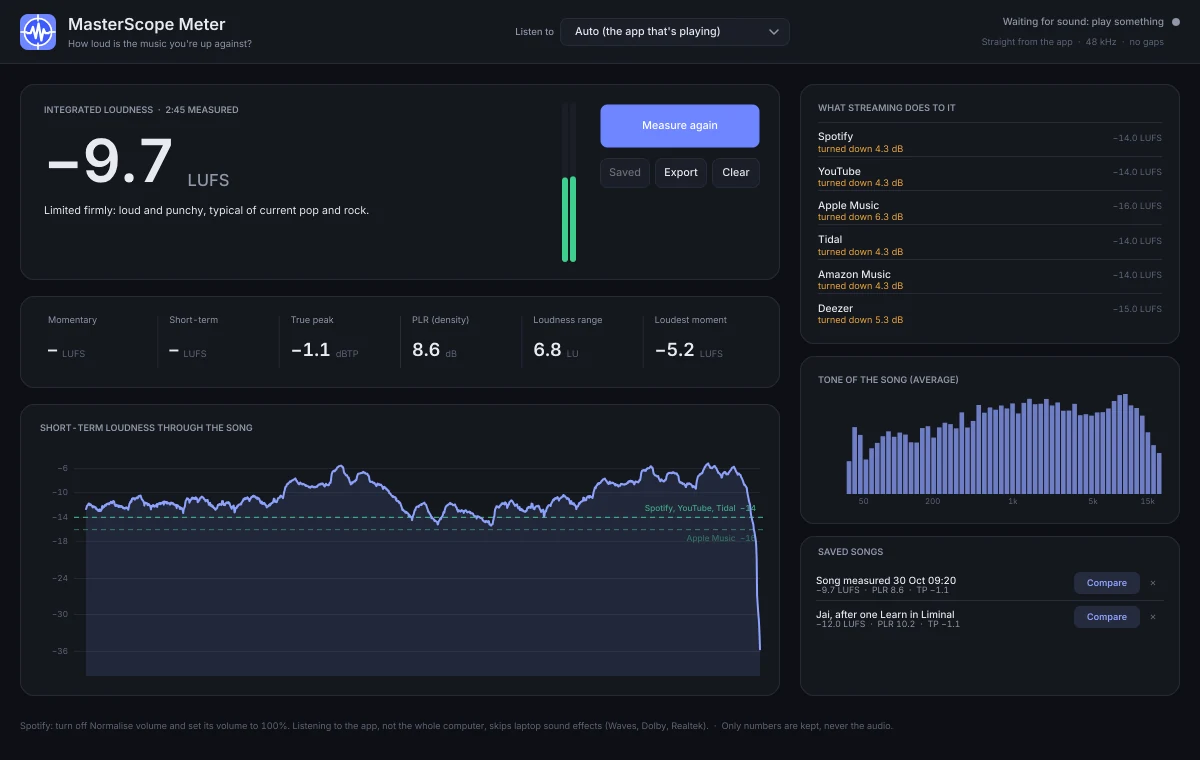
Press Measure at the start and Stop at the end: integrated loudness, true peak, PLR (density), loudness range and the loudest moment, with a one-line verdict on how hard it was limited.
What streaming does to it
How much Spotify, YouTube, Apple Music, Tidal, Amazon Music and Deezer turn the song down or up, so you can see why a louder master doesn't play louder.
Its full report in MasterScope
Press Analyse in MasterScope and the song opens in your browser, no file to save (or Export it and drop the file on MasterScope later): the same report as for a file, with the verdict, every platform, the waveform, spectrogram, vectorscope, stereo width, drum hits, where the peaks come from and what the limiter fights. Then one click compares your mix with it.
Its shape and tone
A graph of the song's loudness from start to finish, with the −14 and −16 LUFS lines the services play at, and its average tone, flat for pink noise like MasterScope's.
Numbers, never audio
The Meter keeps the measurements and nothing else: no recording, no copies of the music. Song names come from the Spotify window or the YouTube tab, to label what you save.
Get true readings
- Turn off normalisation in the Spotify app (Settings, Normalise volume), or you measure Spotify's turn-down instead of the master. The Spotify web player (open.spotify.com) never normalises, so it's ready as it is. Loud songs: if MasterScope says a measurement hit 0 dBFS, the player cut its peaks off at full volume. Measure the song a second time with normalisation on: Spotify turns it down, so the true peak and density (PLR) read correctly. Take the loudness from the first measurement.
- Set the player's own volume to 100%. Your computer's main volume doesn't matter.
- Listen to the app, not the whole computer. On Auto, the Meter listens straight to whichever app is playing (Spotify, VLC, Chrome); if several play at once, pick one under Listen to. Laptops process the sound on its way to the speakers (Waves MaxxAudio, Dolby, Realtek speaker tuning), and listening to the whole computer measures that processing too.
Install on Windows
- Run the MasterScope Meter installer (or the Full Suite, which includes it).
- Open MasterScope Meter from the Start menu and play a song.
- Press Measure at the start of the song and Stop at the end.
Install on Mac (beta)
- Open
Liminal-1.1.0-macOS.pkgand keep MasterScope Meter (beta) ticked under Customise (untick Liminal if you only want the Meter). It goes in Applications. Needs macOS 14.2 (Sonoma) or later. - Open MasterScope Meter and play a song. The first time, macOS asks to let it record system audio: click Allow. If you missed it, turn it on under System Settings → Privacy & Security → Screen & System Audio Recording (System Audio Recording Only) and reopen the Meter. It measures the sound and keeps only the numbers.
- Press Measure at the start of the song and Stop at the end.
Works with Liminal
In Liminal, Tools → Measure a song measures a reference track playing in your DAW, with a button to use its loudness or density as Learn's target. The Meter does the same for anything on your computer. See Liminal.